Too long to read?
Let ChatGPT summarize this Smart Salary article for you in seconds.


Looking for how to log in to Smart Salary IWIP? You are on the right page. This article specifically discusses the Smart Salary application used by IWIP (Indonesia Weda Bay Industrial Park) employees, covering how to log in, troubleshooting login failures, confirming attendance, and checking payslips.
This guide summarizes the most frequently asked questions by IWIP employees: company code, how to download the app, how to log in, attendance confirmation, and how to check payslips.
Why Isn’t the Application on the Play Store?
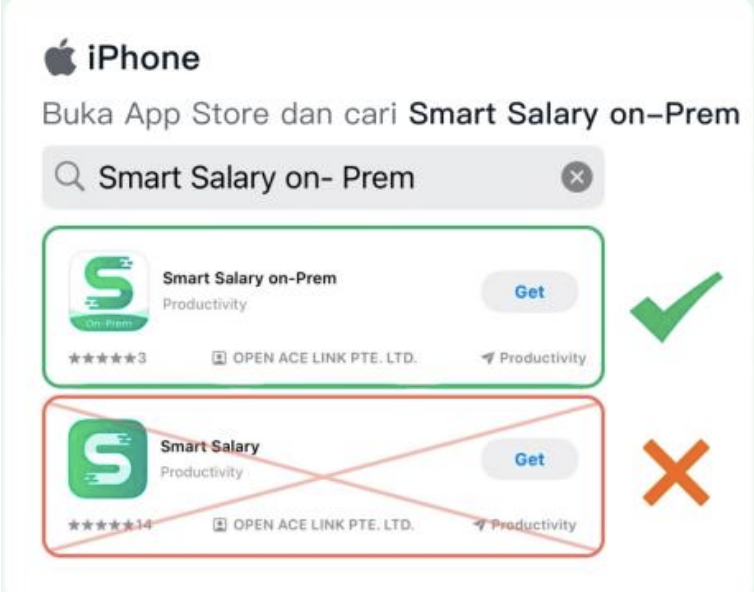
This is the most frequently asked question, and the answer is simple: the Smart Salary application for IWIP is not distributed via the Play Store. The application is distributed directly by the company.
Ready to see Smart Salary in action?
Book a free demo and see how it fits your team’s payroll.
If you download the Smart Salary app from the Play Store and try to log in with your phone number, the login will always fail. That application is for the cloud version, while IWIP uses an on-premise version with a different login method.
Ask your department admin for the official download link. Avoid downloading APK files from third-party sites or unofficial messaging groups, as they carry the risk of containing fake applications that can steal your data.
The official company guide provides separate download links for Android and Huawei phones. For iPhone users, ask your department admin directly as the method is different.
How to Log In to Smart Salary IWIP
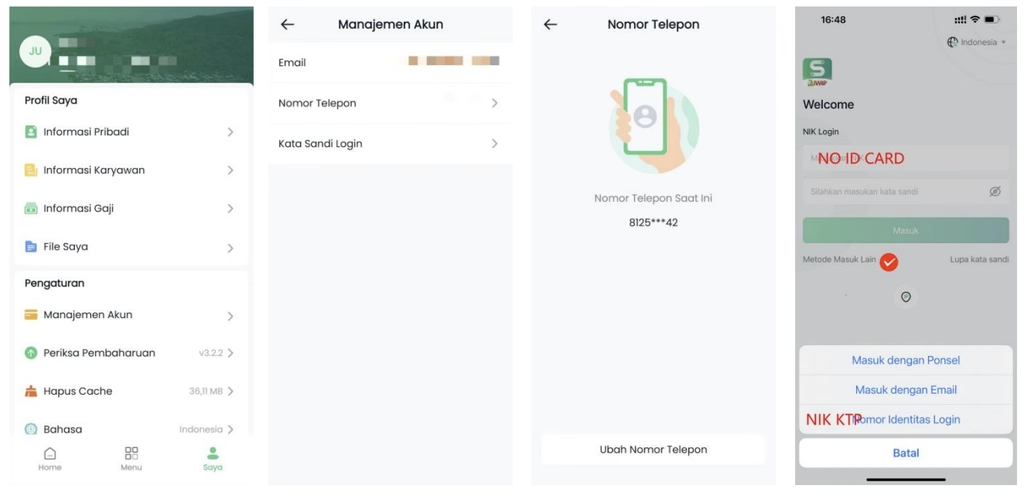
Prepare your National Identity Number (NIK KTP), then follow these steps:
- Open the Smart Salary application that you have downloaded from the company’s link.
- Fill in the Company Code with IWIP.
- If the application asks for an IP address or server, enter the address listed in your official company guide. This address can only be accessed from the internal IWIP network.
- In the account field, enter your NIK KTP or Employee ID Number. Choose one.
- Enter the initial password provided by the department admin or HRD.
- The system will ask you to change your password upon your first login. Create a new password and note it down carefully.
- Save your new password. This password will continuously be used to open payslips through the app. Losing your password means you will have to request a reset from your department admin.
- After successfully logging in, immediately verify your mobile number or email through the Me > Account Management (Saya > Manajemen Akun) menu. Without this verification, the forgot password feature will not work when you need it.
Login Data Summary
Field | Filled with |
Company Code | IWIP |
IP Address / Server | According to the official company guide (only accessible from the IWIP network) |
Account | NIK KTP or Employee ID Number |
Password | Initial password from the department admin, mandatory to change during the first login |
Forgot Password
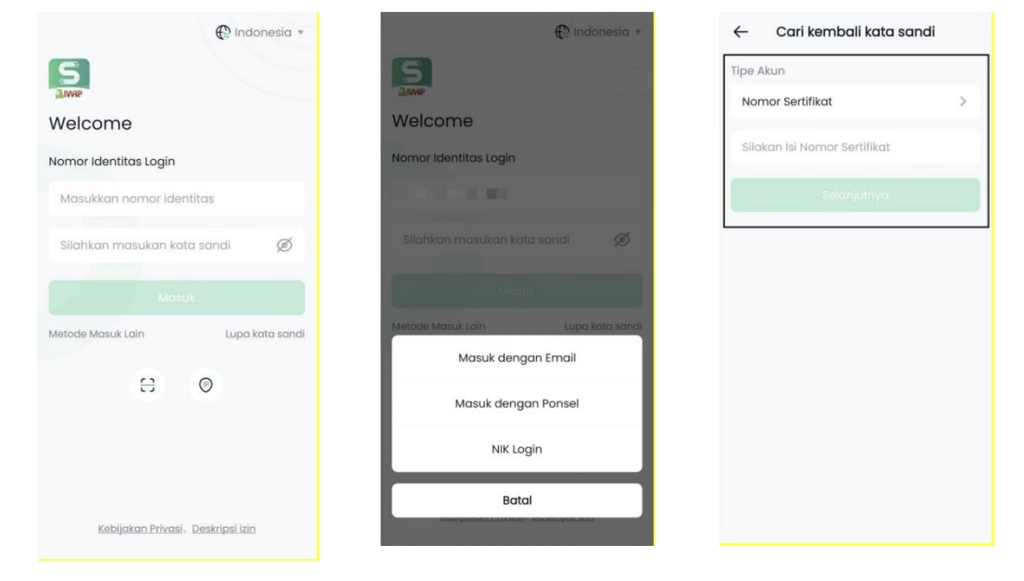
Open the application, press Forgot Password (Lupa Kata Sandi), then use the mobile number or email registered in the system to reset it. If your number has never been registered, this feature will not work, and you will need to contact your department admin.
Entered Correctly But Still Cannot Log In
The Smart Salary IWIP server is located on the company’s internal network. If you try to log in from outside the work area using cellular data, the application will most likely not be able to connect even if the company code, account, and password are correct. Ensure you are connected to the IWIP network, or ask the IT team if outside access is available.
Attendance and Presence Confirmation
Face Scan Attendance Not Recorded
Face scan data synchronizes to the system within about one hour. If the data still hasn’t appeared after one hour, contact the department admin to check the face scan system. If the data is there, the system will synchronize automatically. If not, the department admin will forward the issue to HR-Payroll.
If you did not have time to face scan or your face scan was not read, submit an attendance correction form. Once approved, the system will automatically update your attendance data.
- Deadline: The time for attendance correction must fall within your working shift hours or break hours. Submissions outside that range cannot be accepted.
Lateness or Leaving Early
Lateness and leaving early cannot be submitted via the attendance correction form. If there is a data discrepancy, contact HRD or Payroll.
Absenteeism (Mangkir) Calculation
The calculation follows the face scan obligations of your shift:
- Shifts requiring face scans 2 times a day: Absence during the 2 face scans is counted as 1 day of absenteeism.
- Shifts requiring face scans 4 times a day: Absence during the 4 face scans is counted as 1 day of absenteeism.
- If there is a data discrepancy, contact HRD-Payroll.
Mandatory Attendance Confirmation Within 24 Hours
The previous day’s attendance results are sent to the app at 12:00 PM the following day. Employees are required to confirm their attendance within 24 hours after receiving the data.
If not confirmed within that time limit, the system automatically assumes the attendance has been confirmed. Because attendance is directly tied to payroll, it is highly recommended to check your attendance status immediately after clocking out.
- How to check: Press Menu, then press Attendance (Absensi). Ensure the attendance data is correct. If there is a discrepancy, press the Process (Proses) button to follow up. If you need to apply for an attendance correction or a permit/leave, exit the Attendance Confirmation menu and submit the form through the Approval (Persetujuan) menu.
Leave/Permit Form Submission
Leave forms must be submitted into the system no later than 24 hours before the leave date. In emergencies, requests can be submitted no later than 3 days after returning to work. Beyond that limit, submissions cannot be processed.
Approval Flow
Employee > Foreman (Expatriate/TKA) > Department Admin (Local/TKI) > Supervisor (Expatriate/TKA) > Department Manager.
The department admin needs to ensure the job structure in the system is accurate so that no vacant positions cause the approval process to be bypassed. If an error occurs in the approval process, update the department’s job structure first, then resubmit.
- Overtime note: Currently, overtime submissions at IWIP still rely on physical attendance, not the application.
How to Check Payslips
Press the Payslip (Slip Gaji) menu in the application. The first time you open it, you will be asked to set a specific password for payslips. Enter the password you previously set, and keep it safe as it will be required every time you open a payslip.
Reporting Issues
IWIP employees do not contact Smart Salary directly. The proper workflow is for employees to report issues to their department admin, who then summarizes all the issues and forwards them to HR-Payroll.
Issue | Contact |
Forgot password, locked account, application cannot be downloaded | Department Admin |
Attendance or absenteeism data is incorrect | HRD-Payroll |
Lateness or leaving early is incorrectly recorded | HRD-Payroll |
Incorrect job structure causing missed approvals | Department Admin |
Personal data changes | HRD |
Frequently Asked Questions (FAQ)
What is the Company Code for the Smart Salary IWIP login?
Fill in with IWIP in the Company Code field.
What should I use to log in, NIK or Employee ID?
You can use either one — NIK KTP or Employee ID Number.
Why is everything correct but I still cannot log in?
Most likely, you are outside the IWIP network. The application server is internal, so logging in via cellular data from outside the work area often fails even if the data is correct.
I forgot my Smart Salary IWIP password, what should I do?
Use the Forgot Password feature with your registered mobile number/email. If your contact details are not registered yet, contact your department admin.
Related Guides
Smart Salary login failed: causes and how to solve them, to generally understand the differences between the cloud and on-premise versions.
You can check the PDF file here -> Smart-IWIP Usage Guide
Smart Salary Mobile application guide, for online attendance features, leave requests, and payslips on the cloud version.
Is your company considering a similar system? Learn about the Smart Salary attendance and presence module, payslip distribution, and employee self-service.

Diego Ronaldo Immanuel Tambunan is a trilingual Presales & BD Operations Manager at Smart Salary, working across English, Mandarin Chinese, and Indonesian. His expertise spans HR technology, sales operations, and collaboration between Indonesian and Chinese teams. A Mandarin educator, emerging leader, and advocate for cultural exchange, he is committed to expanding opportunities through education, empowering future leaders, and leading by example through service.
✨ Ask AI which HR & payroll platform is best. See what it says!